
Introduction
When running a reseller hosting business, branding shouldn’t just be about your website; it should extend into your hosting environment as well. This is where WHM branding settings come in. With just a few changes inside WHM, you can:
- Replace default logos
- Add your company identity
- Customize client experience in cPanel and Webmail
And the result you get is a clean, professional, white-label hosting experience.
Before You Start
Make sure you have:
- Access to WHM (if you don’t have one, visit telaHosting to get started)
- Your business logo (PNG format recommended)
- Your support email and website link
Once you have these, you’re ready.
Steps to Brand Your WHM
1: Log in to your WHM
- Open your browser
- Go to: https://yourdomain.com:2087
- Enter your username and password
This takes you to your WHM dashboard.
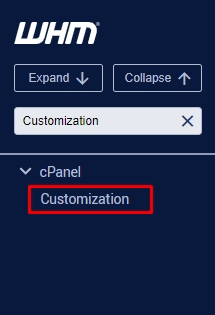
2: Search for “Customization.”
At the top-left search bar in WHM:
Type “Customization”
Then click on:
Customization (under cPanel)
3: Upload Your Branding Assets
Inside the Customization area, you’ll see options to upload:
- Logo (upload your company logo): Recommended size (100kb-1mb), clean and not too large
- Favicon (this is the small icon shown in browser tabs)
Once uploaded, your branding starts replacing the default cPanel look.
Step 4: Customize Company Information
Still within WHM, look for areas where you can define:
- Company name
- Help link
- Support URL
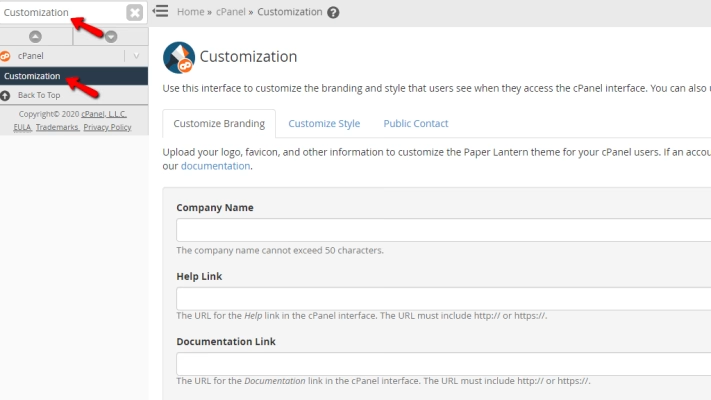
This is to ensure your clients always see your details, not your provider’s.
Step 5: Customize Webmail Branding
Search in WHM:
“Webmail” or “Webmail Configuration”
Here you can:
- Apply your logo to webmail login pages
- Maintain consistent branding across email access
This is often overlooked, but it makes your service feel complete.
Step 6: Set Default cPanel Theme
In WHM:
- Search for “cPanel Theme.”
- Choose a clean, modern theme (like Jupiter, for example)
A good theme improves user experience for your clients.
Step 7: Save and Apply Changes
Once everything is set:
- Click Save
- Apply changes
Your branding will now reflect across new cPanel accounts (and sometimes existing ones).
Step 8: Test Your Branding
This step is very important.
Log in to a client’s cPanel account, and check:
- Logo visibility
- Contact details
- Overall look and feel
Always test what your clients will see.
What Your Clients Will Experience
After branding, your clients will see:
- Your logo inside cPanel
- Your company name
- Your support contact
- A clean, professional interface
Now it feels like a complete hosting platform, not a third-party service.
Tips for Better Branding
When you move away from common templates and lean into the local identity, you create a brand that resonates with the specific needs of South African SMEs.
Here are the essential tips for building a powerhouse hosting brand:
1. Prioritize “The Local Edge.”
South African clients value proximity, both for speed and for accountability. Explicitly state that your servers are located in Johannesburg or Cape Town to assure clients of POPIA compliance and lower latency.
Advertise in Rands (ZAR) to signal stability and transparency, shielding your clients from the frustration of fluctuating exchange rates.
2 Use White-Labeling to Its Full Potential
If you are a reseller, your “parent” host should be invisible to your clients. Private Nameservers ensure your technical setup uses ns1.yourbrand.co.za instead of a wholesaler’s domain to maintain the illusion of a massive infrastructure.
Branded Control Panels enables you to customize the logo, colors, and favicon of the cPanel or DirectAdmin interface so every interaction feels like it belongs to your agency.
3. Sell Outcomes, Not Specs
Most business owners don’t care about “NVMe” or “LVE limits”—they care about their business growing. Instead of saying “We have NVMe SSDs,” say “We give your customers an instant shopping experience”.
Instead of mentioning “backups,” sell “Business Continuity” and peace of mind against data loss.
Maintain a good reputation by framing your dedicated IP services as “Email Delivery Insurance” to ensure their professional communications never hit the spam folder.
Match your:
- Website
- Emails
- Hosting dashboard
- Add Helpful Links throughout.
Include links to:
- Support
- Tutorials
- Contact page
Avoid these Mistakes
1. Skipping Branding Entirely
2. Default cPanel branding looks unprofessional.
3. Using Low-Quality Logos
4. Blurry or oversized logos reduce credibility.
5. Not Testing Changes
6. Not previewing before sending to clients.
7. Inconsistent Branding
Your hosting panel should match your business identity.
This is how it would be:
You set up branding in WHM →Create a client account →Client logs into cPanel →Sees your logo and support details
With that, your clients will see instant professionalism, and they will know you didn’t come to play.
Why Does Branding WHM Matter
Branding WHM matters because it transforms a common, technical interface into a personalized, professional tool created and managed by you. Branding your WHM environment helps you:
- Build trust with clients
- Looks like a real hosting company
- Deliver a premium experience
- Stand out in South Africa’s hosting market
- Enhace brand recognition
- Differentiate from competitors.
It might look like a small setup, but trust me, it is a small setup with a big impact.
Conclusion
Customizing WHM branding settings is one of the easiest ways to upgrade your hosting business from basic to professional.
With just a few steps, you can create a seamless, branded experience your clients will trust and appreciate.
If you can take just a few minutes to set it up, your business will instantly look more polished and professional.
We have a variety of hosting plans to choose from. Feel free to explore.
Need help setting up WHM branding? Contact us; we are always available and happy to help.
Start Building a Fully Branded Hosting Experience
Your hosting platform should reflect your business — not your provider.