

So, you are at the stage where you’ve purchased a reseller hosting plan, and what’s next is setting up your reseller hosting account. Right?
Now this part will appear a bit technical, as it might be your first time setting up a reseller hosting account. It’s completely normal if you’re feeling unsure.
Most beginners think this step is complicated, but once you break it down, it’s actually very straightforward. You don’t need to be a server expert — just follow a few simple steps, and you’ll be up and running in no time.
Let’s walk through it together.
Reseller Hosting Account Setup
Step 1: Log In to Your Hosting Dashboard
After purchasing your reseller hosting plan, your hosting provider will send you the login details to your client area or customer portal, cPanel, and WHM. Usually, the login details are contained in an email with a subject that looks like this: “New Hosting Account Information”. You’ll typically get access to:
WHM (Web Host Manager) – where you manage your reseller account. (clients) cPanel – used for your own individual account. This is where you manage your web files, emails, database, and everything regarding your platform.
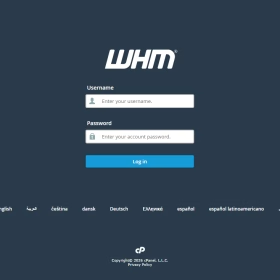
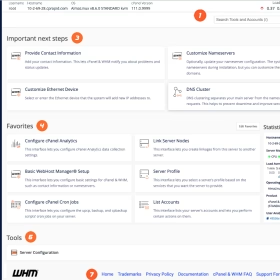
Start by logging into WHM. This is your main control center. Once you log in, it will bring you to an interface that looks like what is below on the right.
Step 2: Set Up Your Nameservers
Before doing anything else, you’ll want to brand your hosting service. Navigate to where you will see “setup nameservers,” or you can simply search for the word “nameservers”.
This involves setting up private nameservers, for example:
ns1.yourdomain.co.za
ns2.yourdomain.co.za
You’ll register these nameservers with your domain provider and link them to your hosting server IP address.
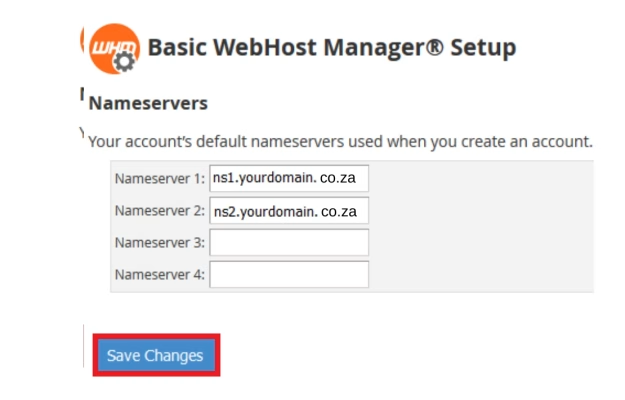
This step ensures your clients see your brand, not the main hosting provider. Note: Your nameservers must be registered with the domain registrar and connected to your server IP address for it to work. It won’t be a bad idea if you contact your hosting provider for assistance.
Step 3: Create Your First Hosting Package
Next, you’ll create a hosting package — this is what you’ll assign to your clients.
Inside WHM, go to “Create/add Package.”
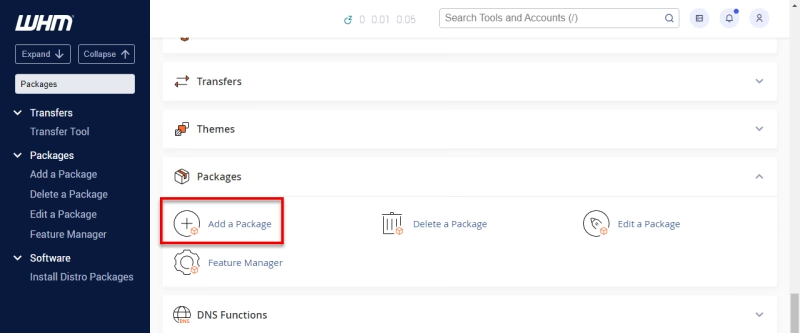
There you will see things like:
- Disk space (e.g., 5GB, 10GB)
- Bandwidth
- Number of email accounts
- Number of databases
- Add-on domains, etc.
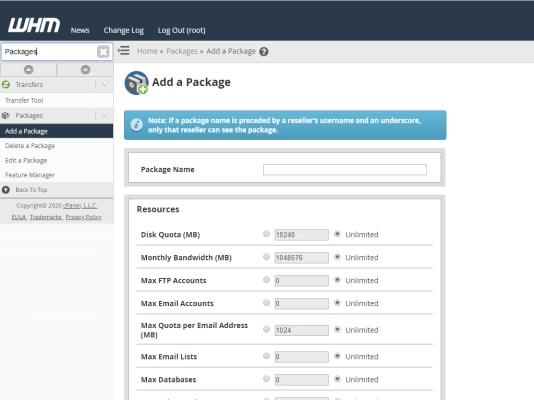
Remember to start simple. You can always adjust or create more packages later.
Step 4: Create Your First Client Account
Now the real setup begins.
In WHM, go to “Create a New Account” and enter:
- Domain name (e.g., clientsite.co.za)
- Username
- Password
- Email address
- Selected hosting package
After that, scroll down and click ‘create.’
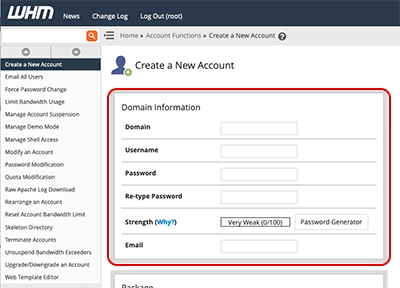
That’s it. You’ve just set up your first hosting account. Alternatively, you can do this automatically when you have integrated your WHM with WHMCS.
Step 5: Send Client Login Details
Once you have created the account and are sure that everything is okay, you can now send your client their:
cPanel login URL
Username and password
Your support contact details, and other information you wish to include
Keeping this information clear and organized makes you look professional and reduces future support requests. Similarly, all of these actions can be carried out automatically with either a tool called WHMCS or ClientExec. Other tools exist out there; these are just the popular ones.
However, since you are just starting, an automation tool might not be needed; focus instead on how to get clients. But if you’ve got a few clients, or you are not new to this, then you can give it a try, as it will save you a lot of time and effort.
Step 6: Access the Client’s cPanel
Furthermore, just to be sure, check if you can log into the client’s cPanel from your end, because once you can access it, so also can your client.
A cPanel is where you (or your client) can:
- Upload website files
- Create email accounts
- Manage databases
- Install apps or software like WordPress, for example
- Set up backups
Don’t panic, it’s user-friendly and designed for both technical and non-technical users.
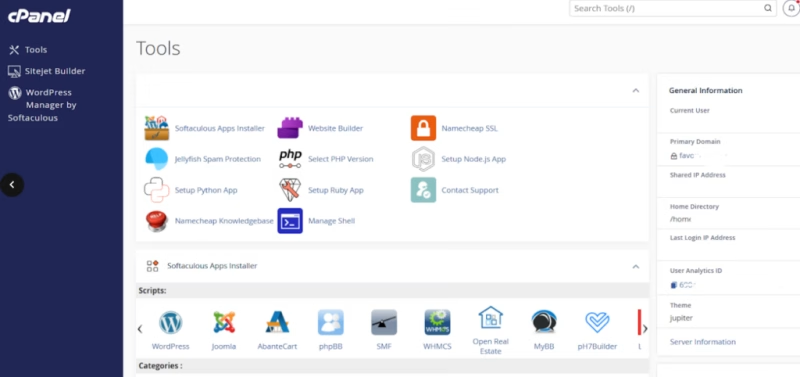
Congratulations! At this point, you have successfully created and accessed your first client’s hosting account. Give yourself a little break and 👍for your effort.
In addition, there are a few things you can add, just to give you an edge. It is optional, as it is the responsibility of the client; yours is to provide the infrastructure for them to do whatever they want with it. I suggest you ask first. Moreover, most clients know how to do this, but for the sake of beginners, you might consider it. They are:
Setting Up Email Accounts
Clients often need professional email addresses like:
[email protected]
[email protected]
This can be done easily in the user’s cPanel. Log in and navigate to the “Email Accounts” section of the cPanel dashboard and create them quickly. Remember you can access your clients’ dashboards from your WHM or WHMCS (requires installation and license)
This adds immediate value to your hosting service.
Installing a Website (Optional but Common)
Most clients will want a website installed.
You can easily install platforms like WordPress using tools such as Softaculous (Locate the ‘software’ section of your client’s cPanel)
This allows you to set up a website in just a few clicks — no coding required.
A Simple Tip to Remember
Your first setup might take a bit of time — and that’s okay.
After setting up 2–3 accounts, the process becomes easy. You’ll be able to create and manage accounts quickly and confidently.
What to Avoid
- Skipping nameserver setup (affects branding)
- Creating overly complicated hosting packages
- Not testing the account after setup
- Sending unclear login details to clients
Keep things simple, clear, and professional.
Setting up your first reseller hosting account may seem technical at first, but once you go through the process, it becomes simple.
With just the few steps above, you can create hosting accounts, manage clients, and start building a business that generates recurring income.
Take your time, learn as you go, and most importantly, get started.
Why not start now?
👉 Explore Reseller Hosting Plans
👉 Need help with setup? Contact our team